
A location is one place, with its photos, address, rates and tags attached. Everything else in LocoBase, projects, scout days, shares, is built out of them.
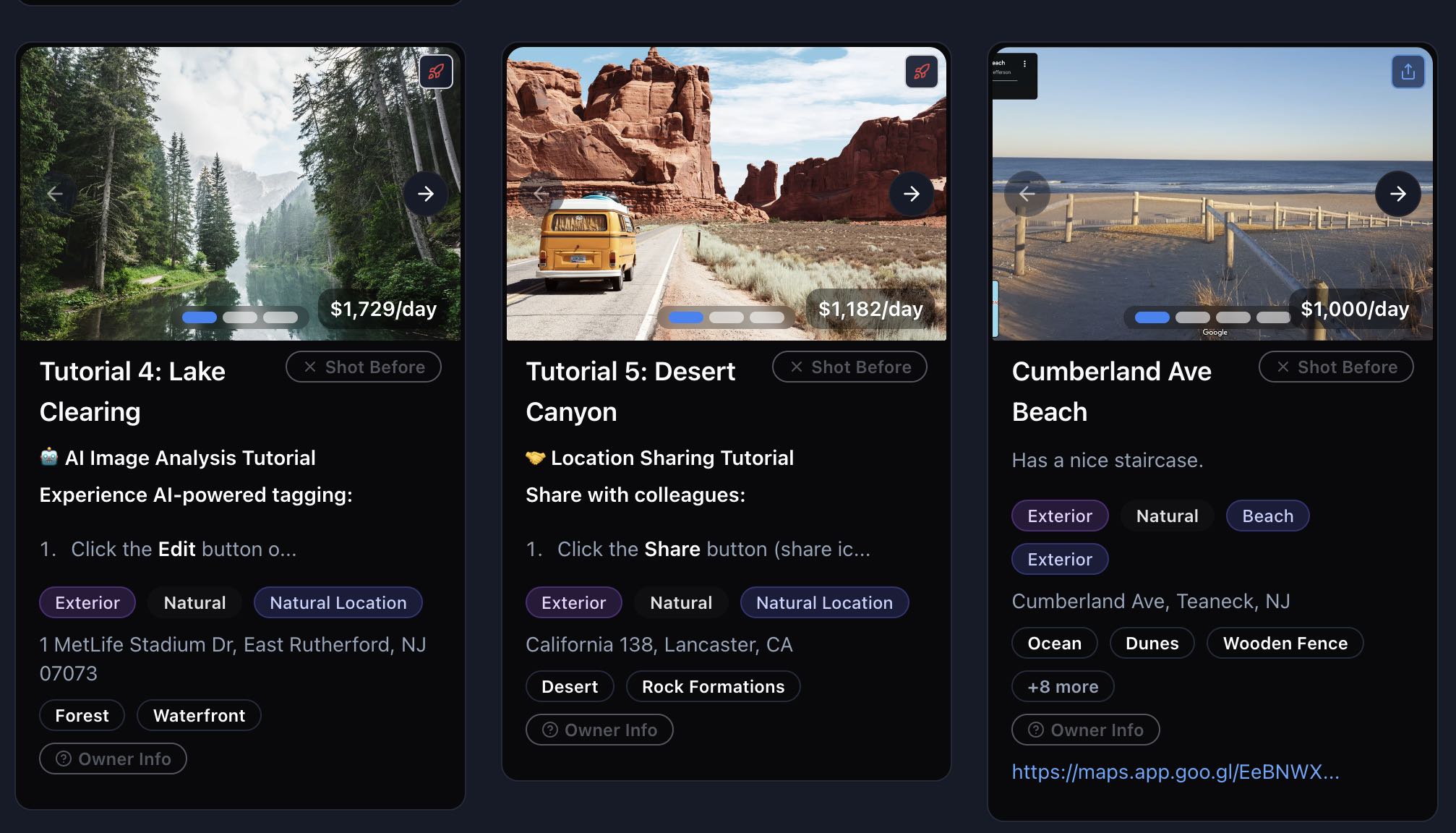
Adding a location
There are two routes in, and they do slightly different things.
From the Locations page, Add Location creates a record in your library and nothing else. Use this when you have scouted somewhere and do not yet know which job it is for. If the place has a listing page, Import from URL at the top of that form fills most of it in for you. See Add a Location from a Listing Link.
From inside a project, the Add Location button on a script location creates the record and files it under that script location in one step. If you open the picker from the project header instead, it asks which script location to file into before it will let you add anything, because a location added to no script location lands in your library and shows up nowhere in the project.
The fields, and which ones matter
Only the name is required. The rest earn their keep in different places:
- Name is what you will search for later, so write it the way you would say it out loud
- Address drives geocoding, the map pin, and the drive time from your production office. Approximate is fine; blank means the location never appears in map view or in a distance-sorted list
- Environment is Interior, Exterior or Studio
- Category is Residential, Commercial, Industrial, Natural or Standing Set
- Type is the specific thing it is: house, warehouse, restaurant, theatre and so on. This is a separate field from Category, and it is the one most people fill in wrongly at first
- Architectural style, features and rooms are the tags that make filtering useful. The AI tagger can fill these in from your photos if you would rather not type them
- Rate feeds the rate column and rate filters. Set the dropdown beside it to Daily, Hourly or Weekly and the unit follows the figure everywhere it is shown; tick Est. while it is still your own guess rather than a quoted price
- Description takes the operational notes: contact, access, parking, permit quirks, the neighbour who complains
Edits are not saved as you type. The form has a Save Changes button and it needs pressing.
Photos
Drag photos to reorder them. The first photo is the cover, and it is what shows on cards, in folder previews, and in anything you share, so it is worth putting the best establishing shot first. There is no separate "featured" setting. Position one is the whole mechanism.
Managing Location Photos covers uploads, clipboard paste, and what the app does to your files.
Video
Video is added beside the photos, in the same Photos and video strip, and appears in the gallery alongside them. Anything over 40 MB is compressed on your own device before it uploads, which is what makes it practical to send a two minute walk-through from the location itself rather than when you get back to the office. See Adding Video to a Location.
Finding locations again
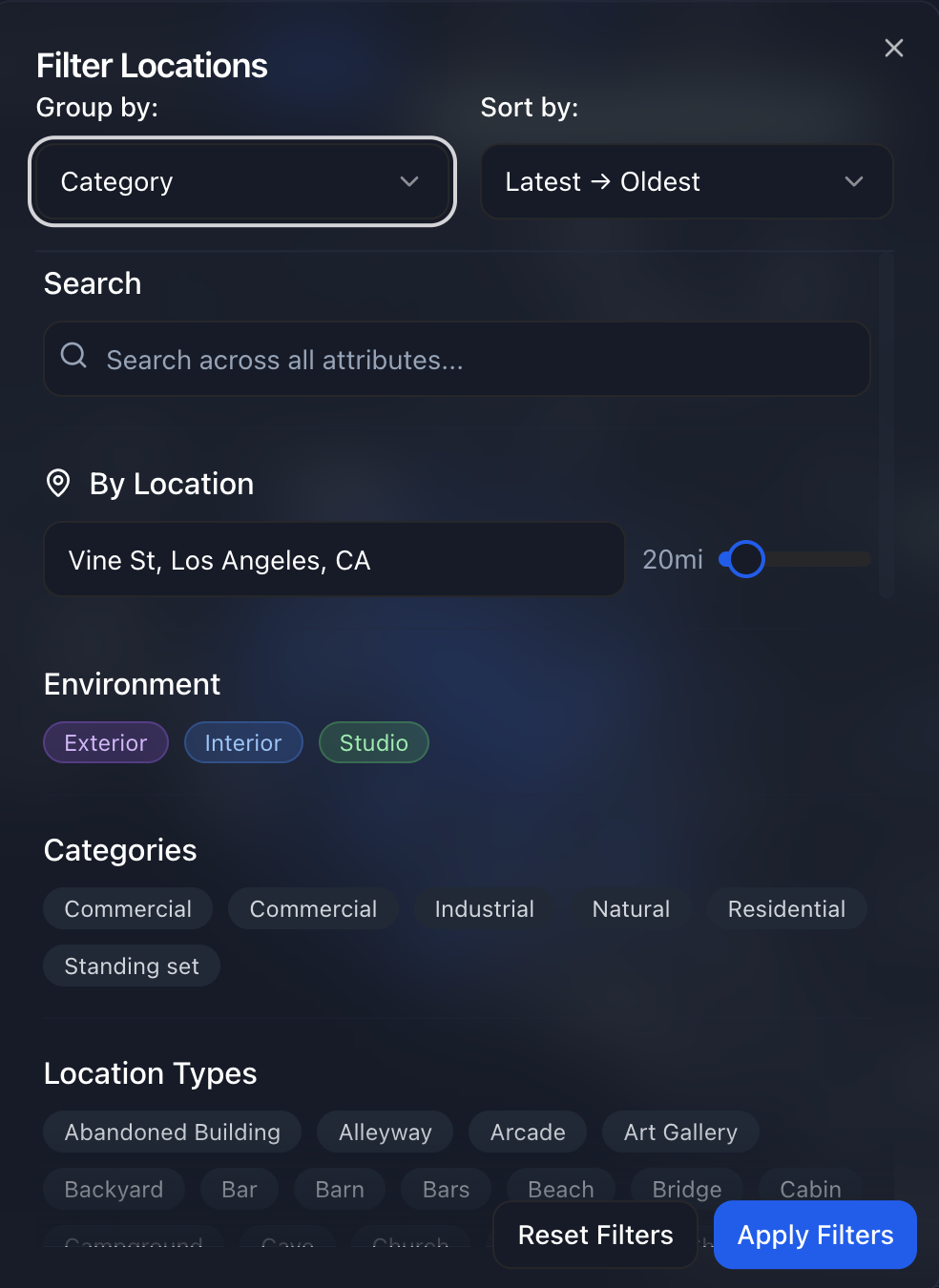
The search box matches names, addresses, tags and notes, and it tolerates rough spelling. A shortened word finds the full one, so "lil cafe" finds Little Cafe and "sunset blvd" finds Sunset Boulevard. Searching Your Library covers how much it forgives and how results are ranked.
Filters are the better tool once the library is large. Environment, category, type, distance from the production office and rate all narrow at once.
Working on several at a time
Select multiple locations and you can:
- Bulk edit environment, category, daily rate, description, and photos across the selection
- Bulk add to project to file a shortlist under a script location in one go
- Bulk share to send the selection to someone
- Bulk archive to clear them out of the library without destroying them
Archive rather than delete is the default here on purpose. Archiving and Restoring Locations explains what archiving does and does not do, including the part where archived locations still count against your plan limit.